Getting Started With ETABS API
The following is an introductory tutorial for CSI API1. Specifically, we will be looking at its usage in ETABS. If you are reading this, I’ll assume you know what those words mean and won’t waste your time further. Let’s get started.
1.0 Connecting to ETABS
There are two ways of connecting to the ETABS API: pythonnet (NET) and comtypes (COM). comtypes is more reliable as of 2026. Pythonnet is newer but it forces pre-declaration of variables and static typing which is unnecessarily verbose for quick scripts.
The easiest and most common use case is to directly attach to an active ETABS instance that you have open.
-
To get started, open your ETABS model.
-
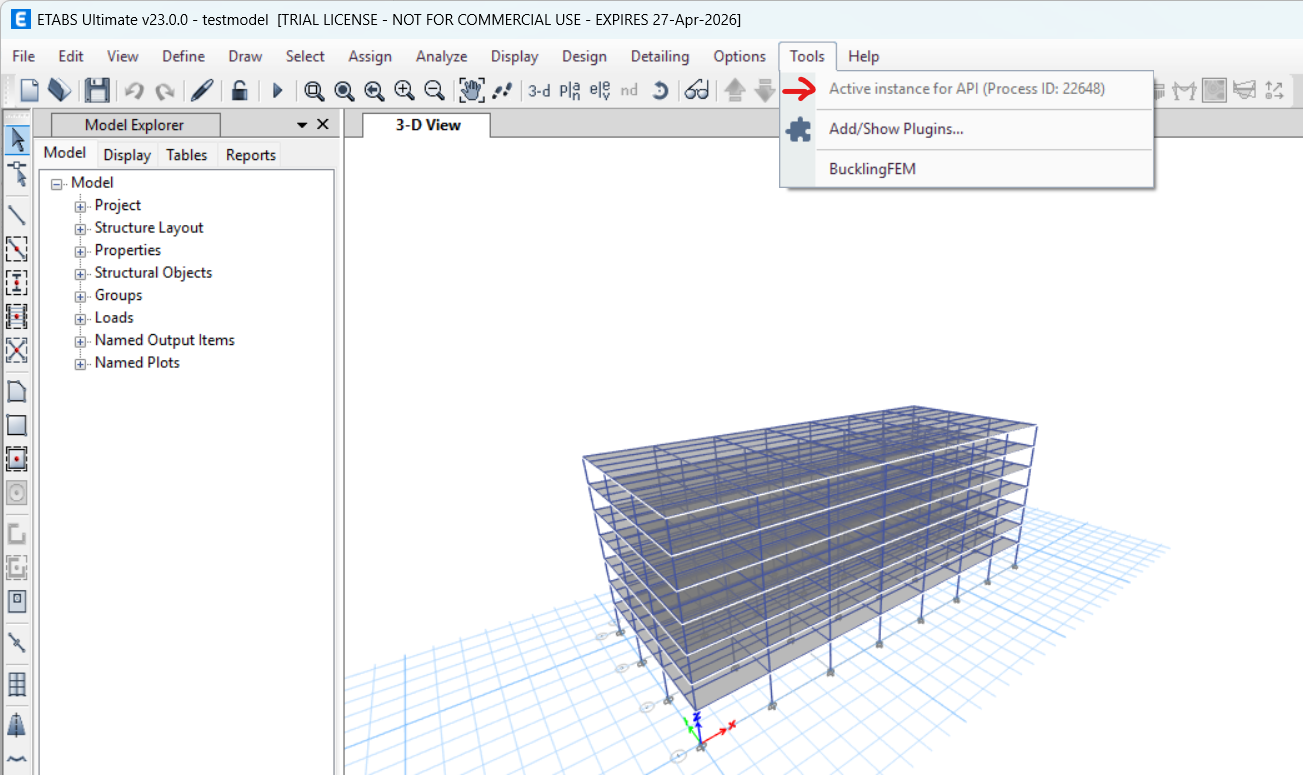
On the top menu bar, click “Tools”. If you see a greyed out: “Active instance for API (Process ID: xxxxx)” it means the program is ready to interact with the API.
-
Let’s do a test run. Copy the code below into Spyder or your IDE of choice and run it.
import comtypes.client

def connect_to_ETABS():
    """
    Attach to an currently open ETABS instance using comtypes.
    """
    helper = comtypes.client.CreateObject('ETABSv1.Helper')
    helper = helper.QueryInterface(comtypes.gen.ETABSv1.cHelper)
    try:
        myETABSObject = helper.GetObject("CSI.ETABS.API.ETABSObject")
    except (OSError, comtypes.COMError):
        print("No running instance of the program found or failed to attach.")
    SapModel = myETABSObject.SapModel
    return SapModel

# Connect to ETABS
SapModel = connect_to_ETABS()

# Set unit for API (separate from model)
SapModel.SetPresentUnits(3)  # KIP IN

# Return the ETABS version
ret1 = SapModel.GetprogramInfo()

# Return the model file path
ret2 = SapModel.GetModelFilepath()

# Return all the frame objects in your model
ret3 = SapModel.FrameObj.GetAllFrames()
In the code block above, I’ve wrapped some boiler plate code that establishes connection to ETABS into the connect_to_ETABS() function, just call this in the future to get started.
In addition, I called four API commands:
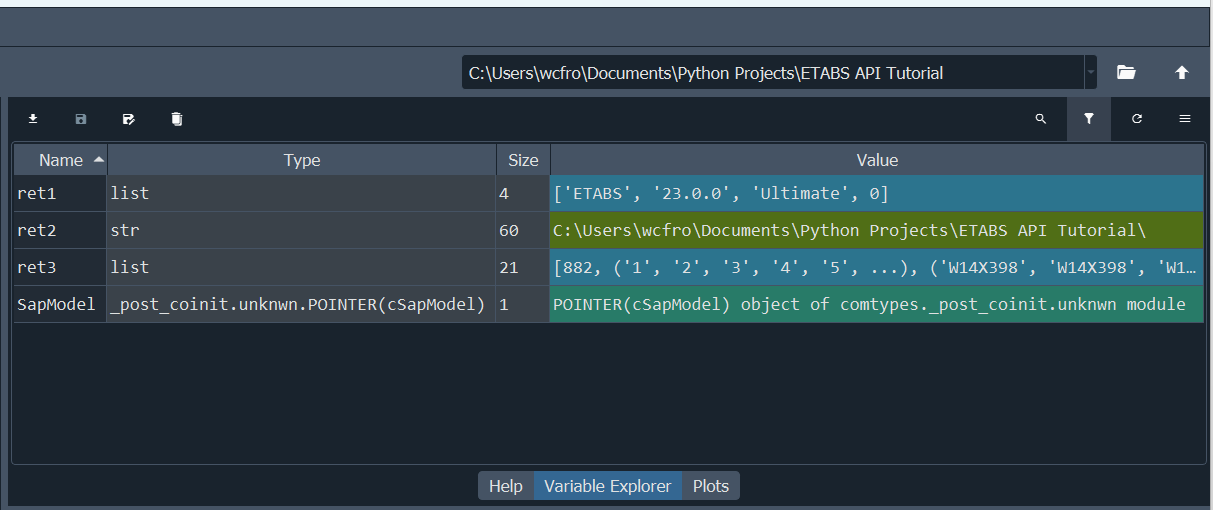
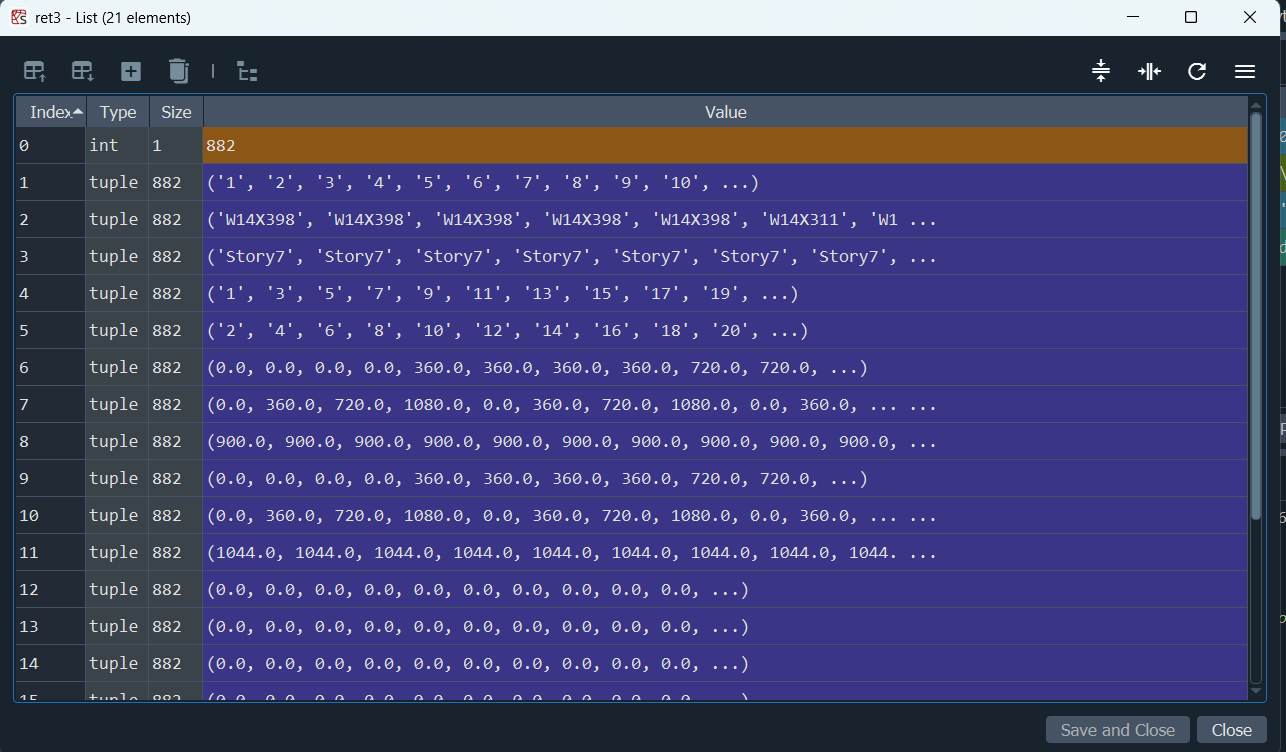
SapModel.SetPresentUnit- set the unit used by ETABS API. Note PresentUnit does not affect your model. It is used for data transfer purposes only. Refer to ETABSv1.eUnits for unit enumeration. 3 = KIP_IN_F, 4 = KIP_FT_F, 6 = kN_m_C, etc.SapModel.GetprogramInfo()- returns information about the ETABS version, which for me is a trial version of ETABS Ultimate v23.0.0. (I have to finish this blog in the next 30 days).SapModel.GetModelFilepath()- returns the model save file path.SapModel.FrameObj.GetAllFrames()) - returns a data dump of all frame elements in the model. If we click on theret3variable, we see an expanded list. The ability to see variables so clearly is what makes Spyder so awesome and beginner-friendly.
If everything worked as expected, you should see several return variables (ret1, ret2, ret3) in the variable explorer:
And you should see something like when after clicking on ret3.
What do these numbers mean? Where can I find more API commands? Let’s go through this in the next section.
2.0 API Documentation
All API commands can be found in the documentation which is located in your ETABS installation folder. The file path looks something like this:
C:\Program Files\Computers and Structures\ETABS 23\CSI API ETABS v1.chm
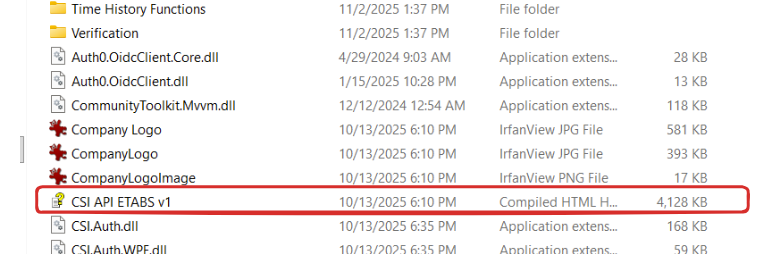
Here’s the welcome screen:
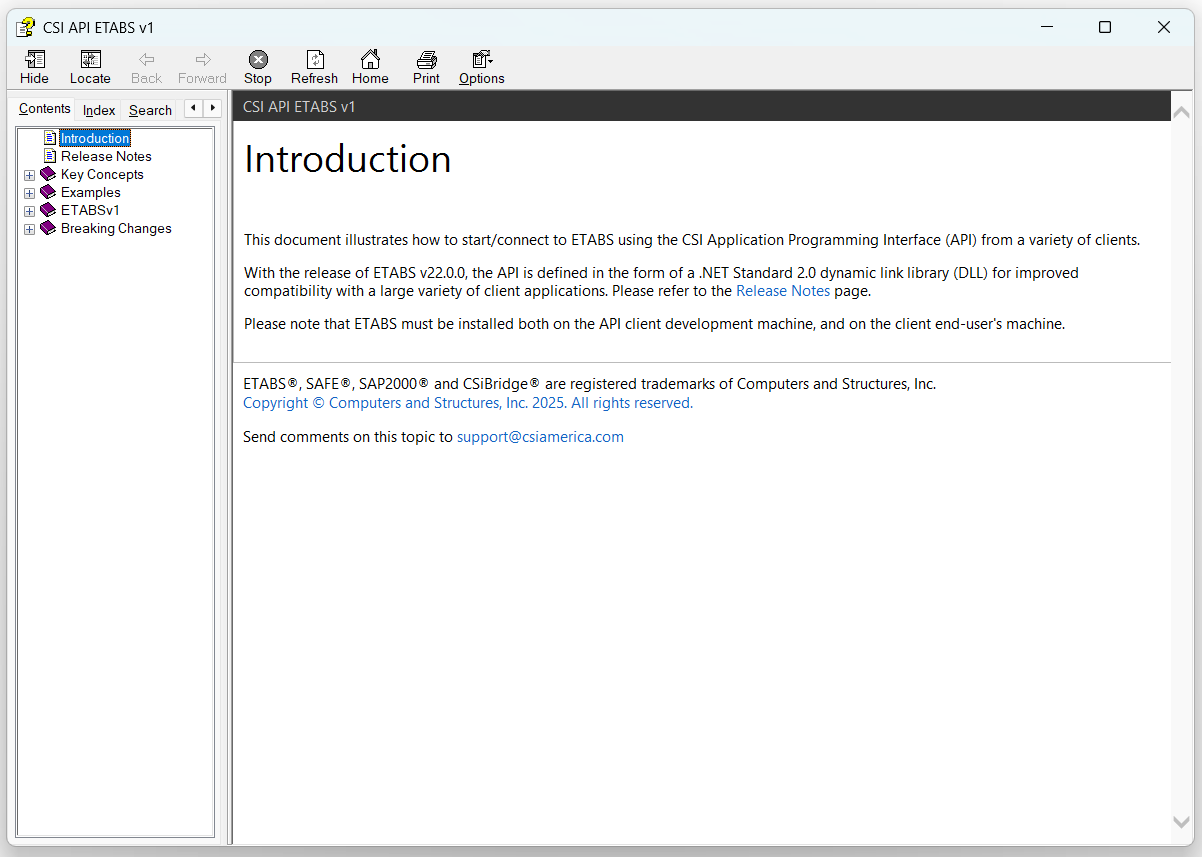
The manual is quite lengthy and overwhelming for first-time readers. Let’s navigate it together.
- Click on “ETABSv1” on the content side bar, everything you need is in here. In total, there are 120 API interfaces available to the user, which seem like a lot! But don’t worry, you’ll only need to know a few dozen commands at most. It’s more important that you know how to navigate the documentation.
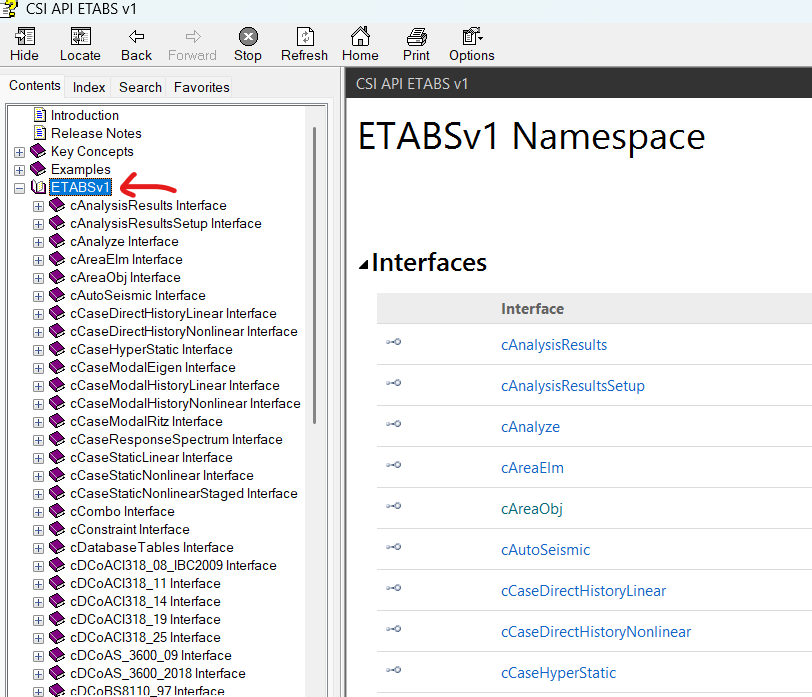
- Take a few minutes to browse around. As an exercise, try to find the following interfaces. These are used all the time.
SapModel.AreaObjSapModel.FrameObjSapModel.PointObjSapModel.AnalysisResultsSapModel.DatabaseTables
- Let’s try using the search functionality. Try to find the three commands I invoked in the last section. Use the “Index” or “Search” tab on the left content bar.
SapModel.SetPresentUnits()SapModel.GetprogramInfo()SapModel.GetModelFilePath()SapModel.FrameObj.GetAllFrames()
One pattern you should have noticed by now is the prevalence of dot notation. Every API command is accessed by SapModel.___. The “SapModel” pointer object is our connection to ETABS:
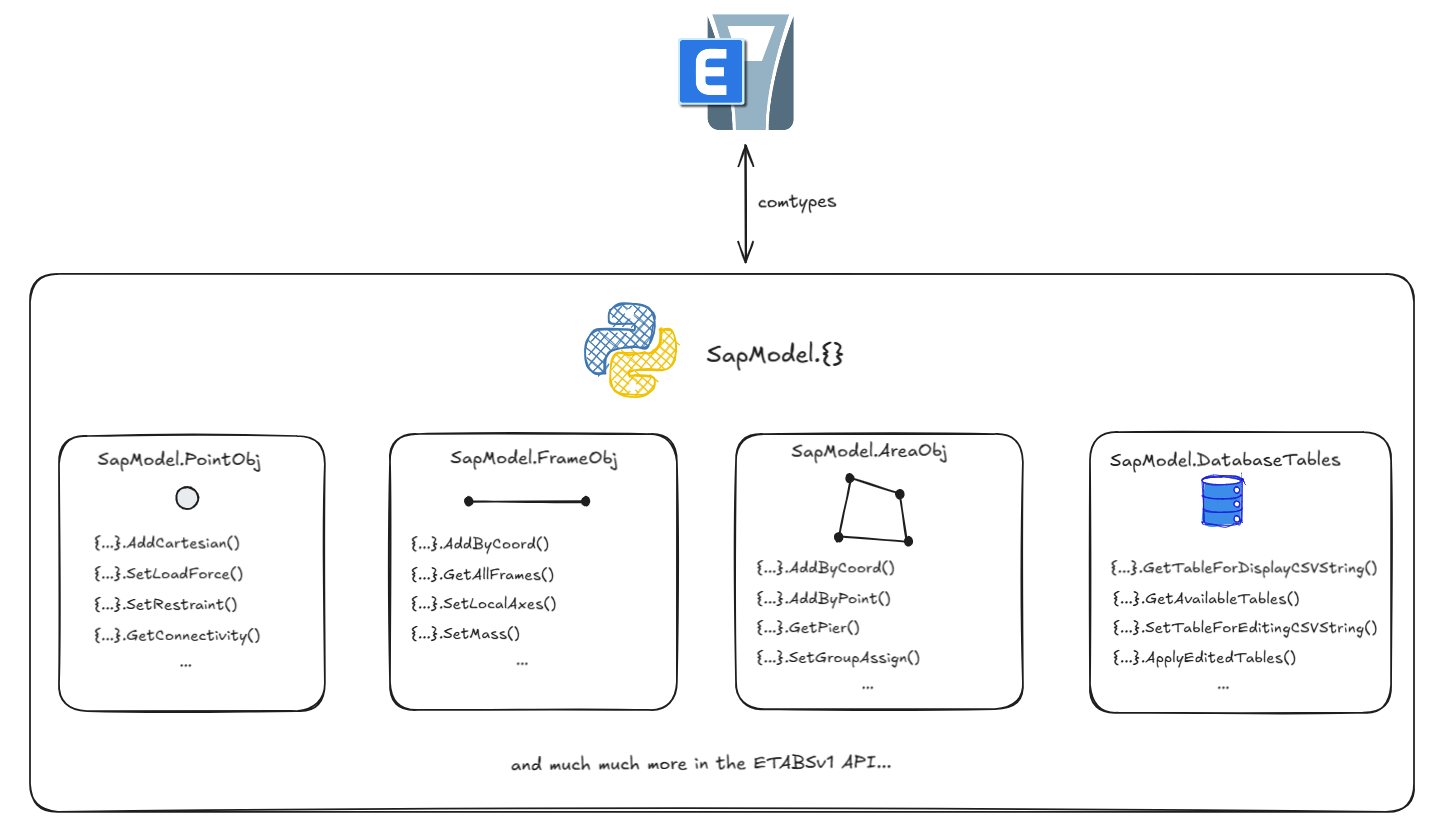
3.0 How to Read the Docs
Let’s take a look at the SapModel.cAreaObj.AddByCoord() page and work through it together. As the name suggests, this command allows us to add a new area elements to the model by specifying vertices (x, y, z) coordinates. Here it is:
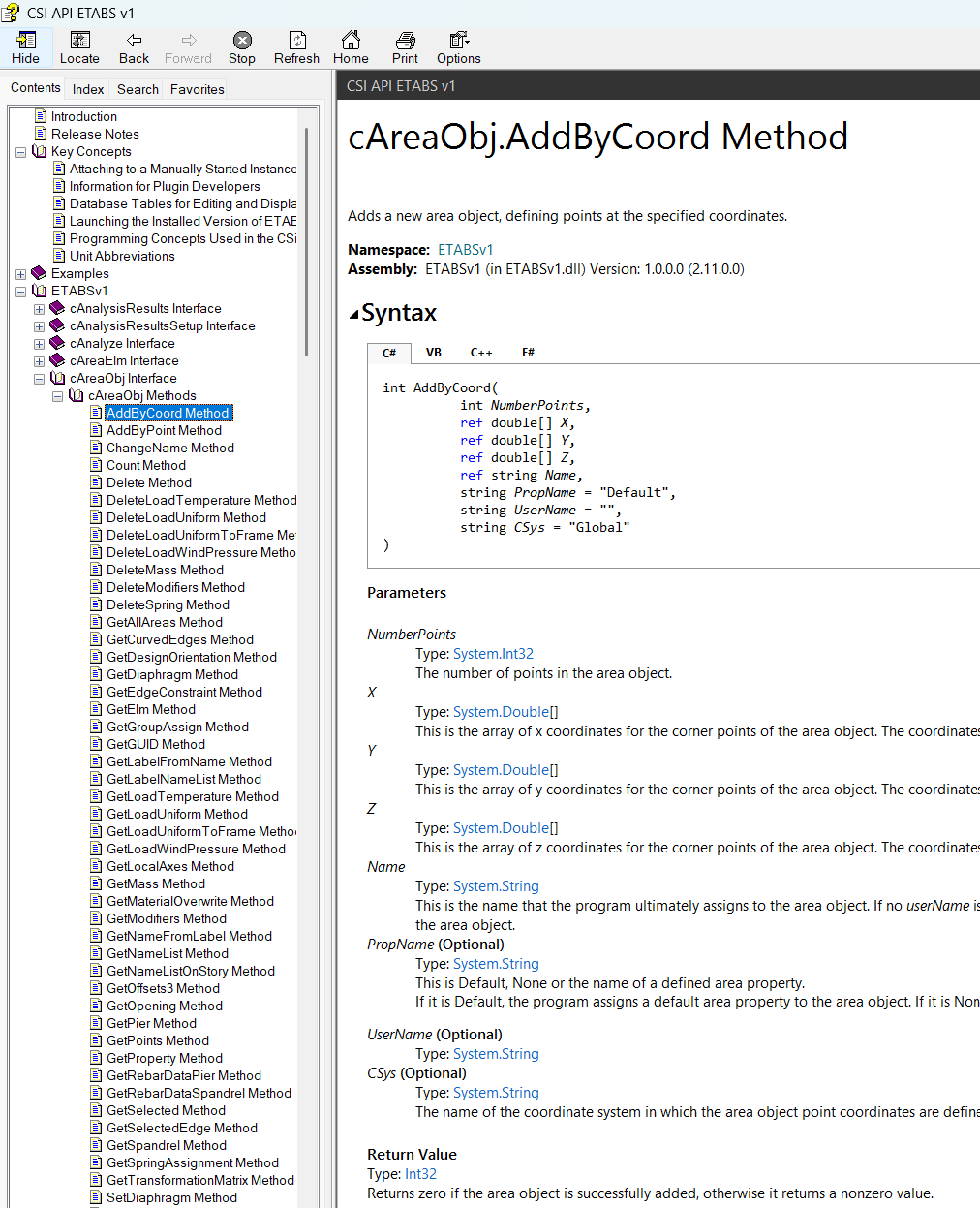
In general, there are three sections to look for on every documentation page:
- Syntax - API call signature. Syntax for
pythonis not available yet as of April 2026. I usually look at syntax forC#. It’s close enough and gives me a good idea of what inputs are needed. - Parameters - Input parameters. Some are optional while others are required. The variable type is important too and what you provide to the API must match exactly (e.g. string, int, float, array, etc).
- The
refprefix means pass-by-reference. This is a major source of confusion and warrants further discussion. Passing by reference is akin to sending someone the URL to an object - the caller and callee has the memory address to the same variable; whereas, passing by value makes a whole separate copy. In practice, this means “ref” parameters are often passed in as empty variables. In C# or VBA, we must pre-declare these variables, and then have the API modify them by reference.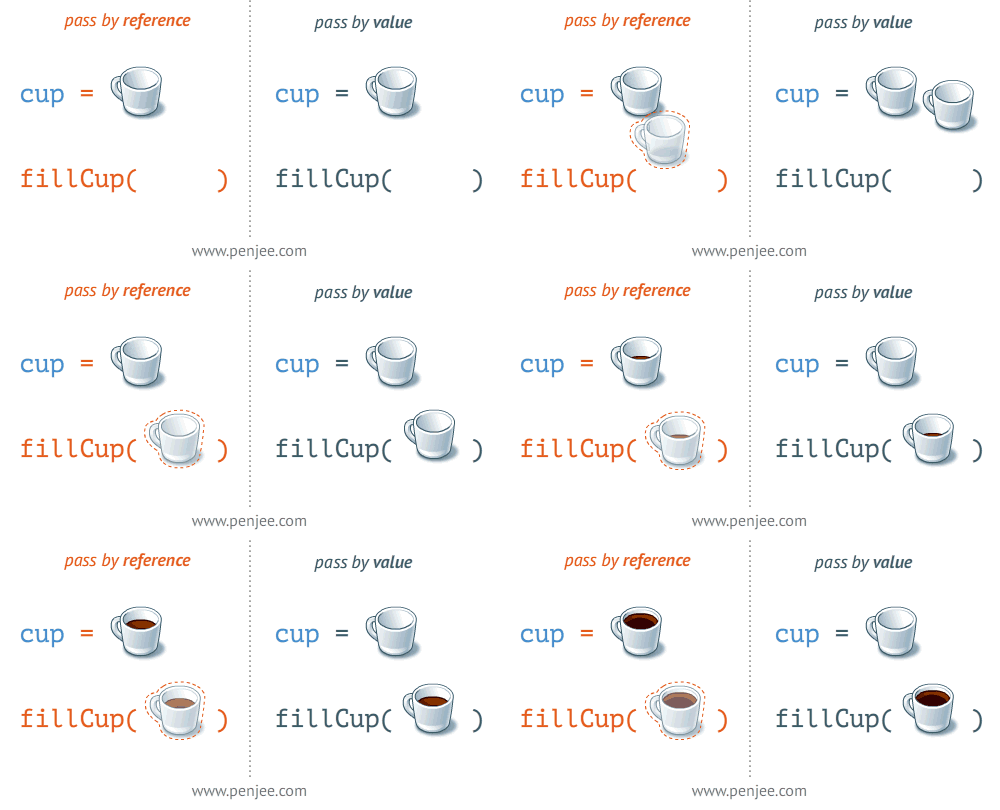
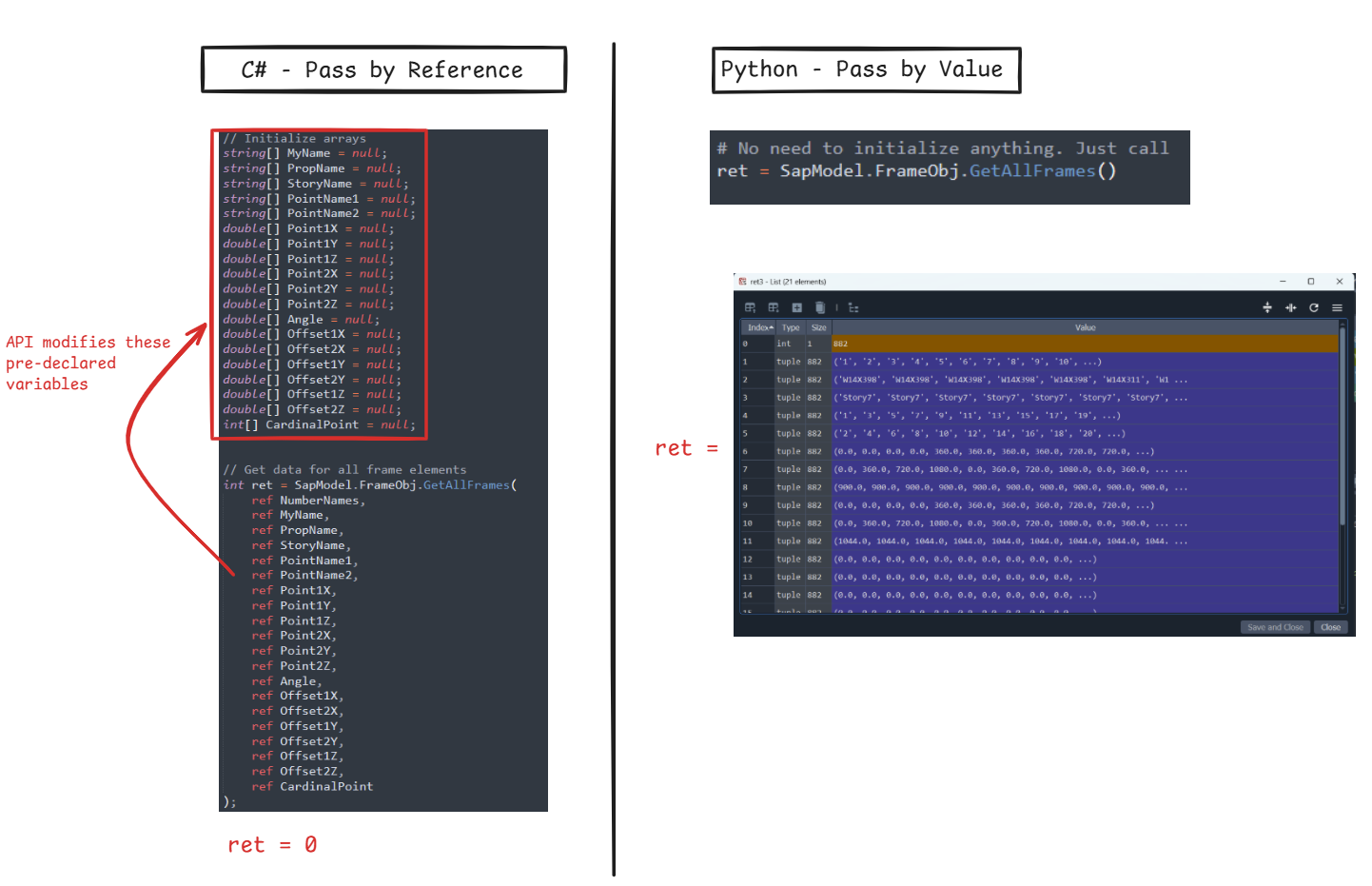
- In Python, however, passing-by-reference is not possible with comtypes. This means we don’t need to provide “ref” arguments to the API (arrays are an exception - they are always pass-by-reference to reduce memory usage). Here’s a comparison for the
SapModel.FrameObj.GetAllFrames()command we invoked earlier. Notice how we have to pre-declare everything in C#. Whereas in python, everything is returned in a big list.
- The
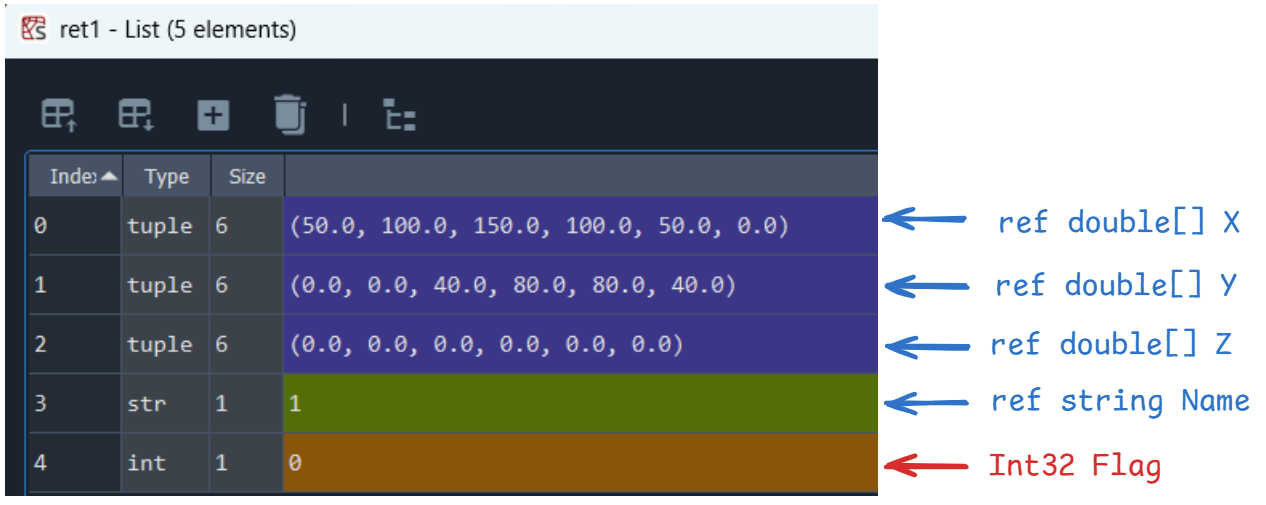
- Return Value(s) - commands can return one item or multiple items in a list. All commands must return an integer flag (0 indicating success, and non-zero indicating failure). When accessing API via Python comtypes, all
refarguments are returned as well.
Going back to the SapModel.AreaObj.AddByCoord() example, we can call the method like this:
- Remove the “c” prefix in front of AreaObj
- Required Inputs:
NumberPoints,X,Y,Z - Optional Inputs (pass-by-ref):
Name - Optional inputs (defaults):
PropName="Default",UserName="",CSys="Global" - Return:
[X, Y, Z, name, integer_flag]
# Connect to ETABS
SapModel = connect_to_ETABS()

# Set unit to kip inches
SapModel.SetPresentUnits(3)

# Specify vertices
x = [50, 100, 150, 100, 50, 0]
y = [0, 0, 40, 80, 80, 40]
z = [0, 0, 0, 0, 0, 0]

# Add area object by coord
ret = SapModel.AreaObj.AddByCoord(NumberPoints=6, X=x, Y=y, Z=z)

# Refresh view
SapModel.View.RefreshView()
If everything worked correctly, you should see this in ETABS:
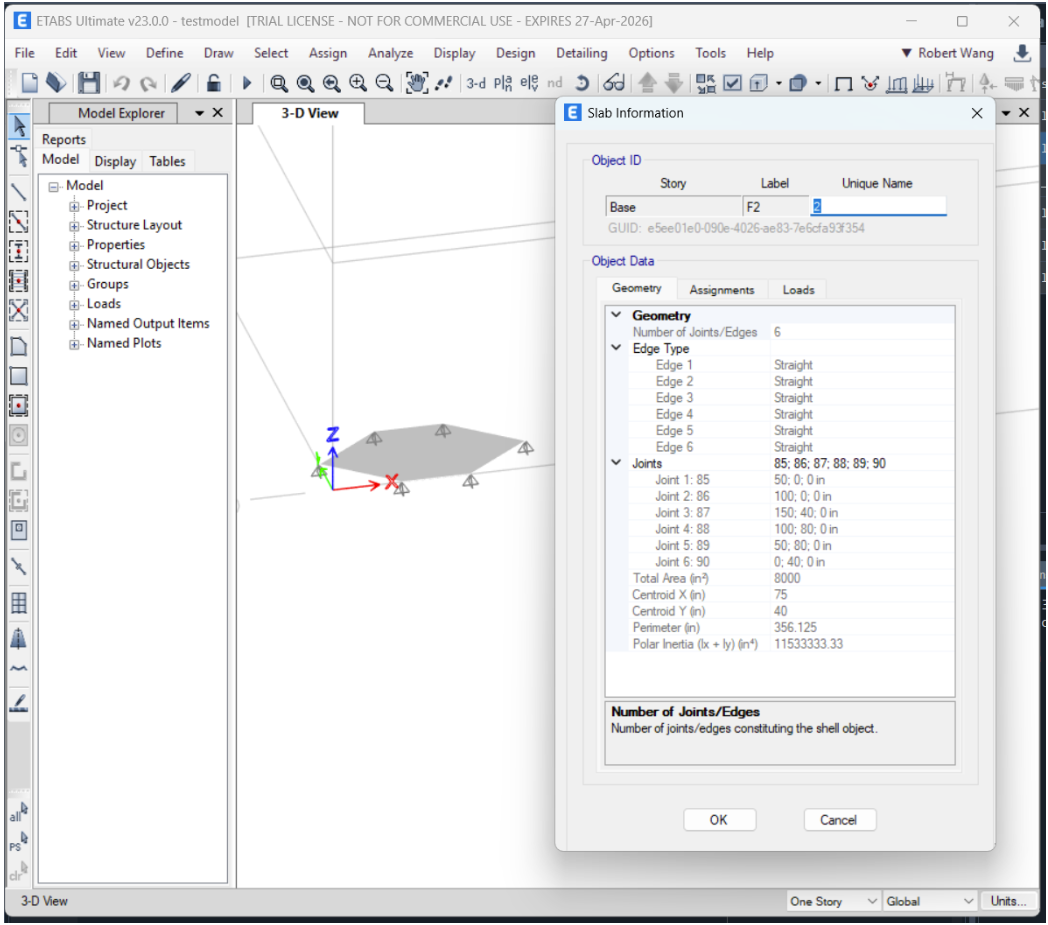
And the API should have returned a list of 5 elements to Python:
That’s all you need to know to navigate the API documentation! Take a few more minutes to browse around. See if you can add a new joint or frame member using the PointObj or FrameObj interface, respectively. Next, let’s cover two common ETABS API usage patterns.
4.0 Database Tables
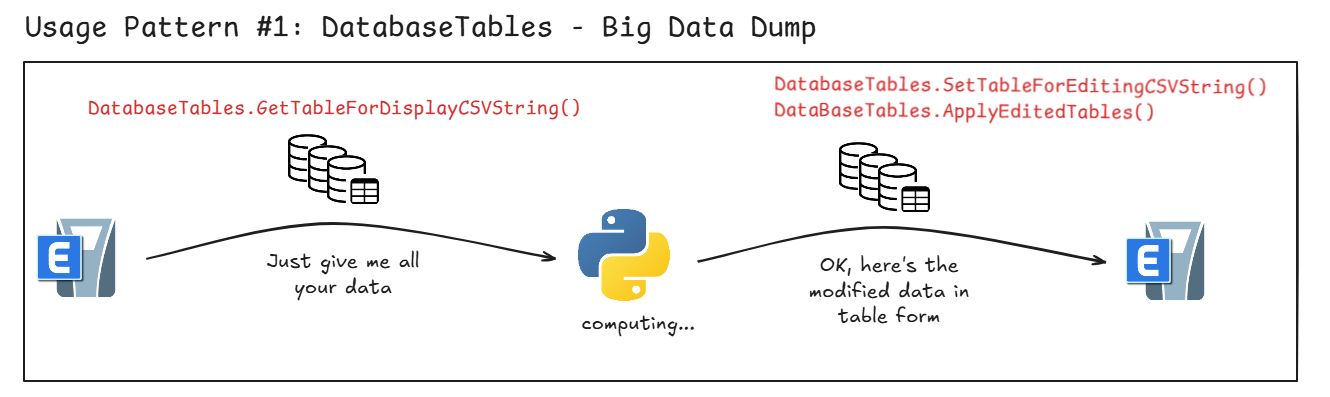
If you have no interest in learning ETABS API, then Database Table is the right interface for you. I call this the big data-dump method. If all you want is to extract data from ETABS, then all you need is this single API command: SapModel.DatabaseTables.GetTableForDisplayCSVString(). For years, this was the only command I knew. You’d be surprised how much you can get done with this just Database Tables.
Rather than extracting or modifying data for specific elements, we can extract or manipulate tabular data in bulk. For example, rather than getting the reaction forces at Joint 3, we can extract the entire “Joint Reactions Table”, and then do all our post-processing in Python.
Here’s an illustration of what I mean:
To see what Database Table you have access to, use the command below. You can also check by pressing CTRL+T in the GUI.
# Show all available tables
ret = SapModel.DatabaseTables.GetAvailableTables()
To get a specific database table. There are also array and file export options, but I think csv is the easiest to work with.
ret = SapModel.DatabaseTables.GetTableForDisplayCSVString()
There are three points of inconvenience when reading Database Tables:
- The raw data is in the form of comma-delimited strings. For ease of use, let’s convert it into pandas
dataframes. - It is good practice to explicitly specify which load combo, load case, or group to extract data from.
- All values are returned as strings (e.g. “1.323”). Remember to convert into float if necessary.
import pandas as pd
import io

# Connect to ETABS (we defined this function in Section 1.0)
SapModel = connect_to_ETABS()

# Always remember to set unit. Let's use kip inches
SapModel.SetPresentUnits(3)

# Set load combination and load case
selected_case = ["Dead", "Live"]
selected_combo = ["1.2D + 1.6L"]
SapModel.DatabaseTables.SetLoadCasesSelectedForDisplay(selected_case)
SapModel.DatabaseTables.SetLoadCombinationsSelectedForDisplay(selected_combo)

# Get database table as csv string
table_name = "Joint Reactions"
ret = SapModel.DatabaseTables.GetTableForDisplayCSVString(TableKey = table_name,
                                                         GroupName = "All")
# Convert csv string to Dataframe
csv_string = ret[2]
csv_io = io.StringIO(csv_string)
df_data = pd.read_csv(csv_io, dtype=str)

# Coerce data into numeric if possible
for column in df_data.columns:
    try:
        df_data[column] = pd.to_numeric(df_data[column])
    except:
        pass
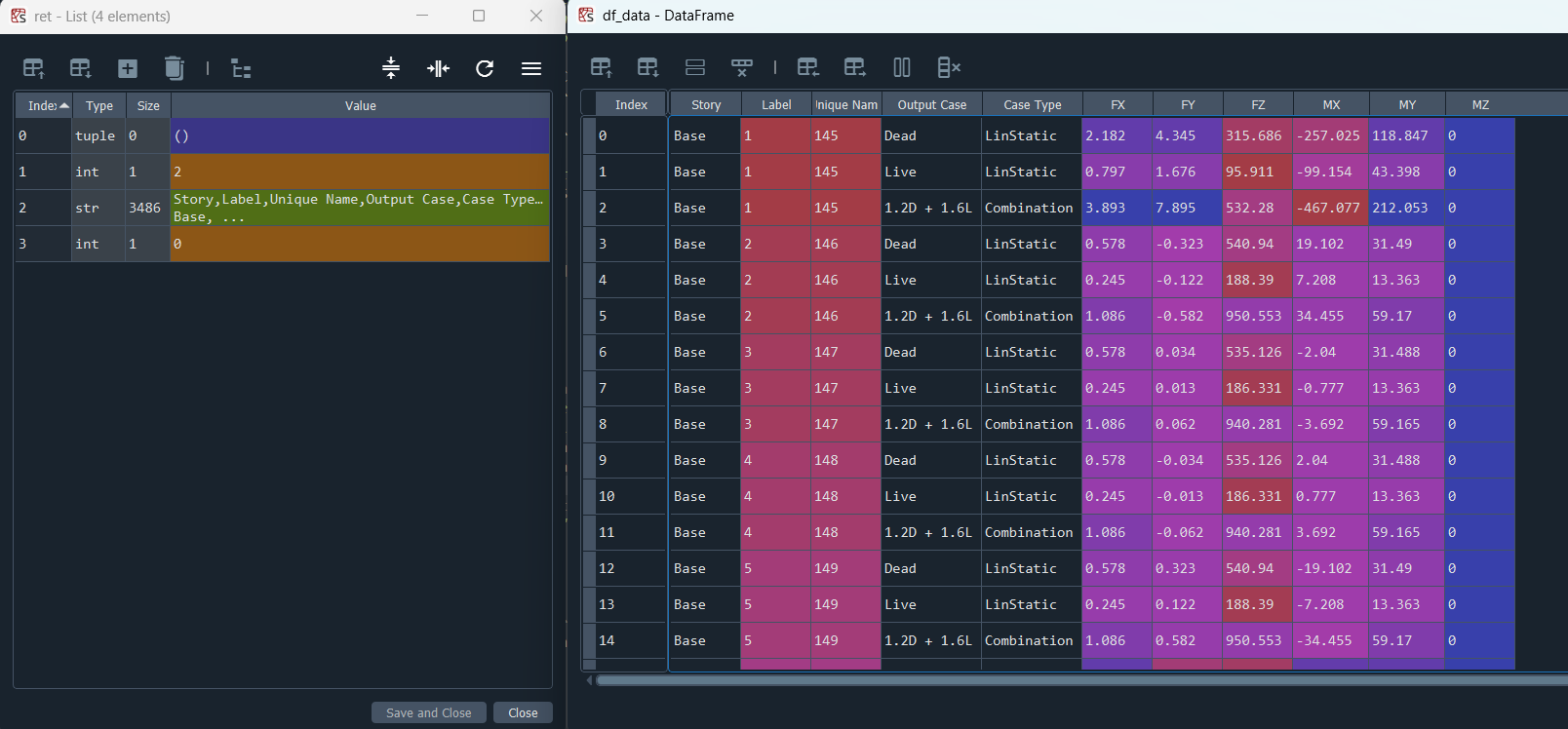
For ease of use, I recommend wrapping the logic above into a function called get_database_table(). Also add some error handling. I’ll leave this as an exercise for the reader. Here’s the “Joint Reaction” table for my model:
5.0 Interactive Database
You can also make changes to your model with tabular data using a feature in ETABS called Interactive Database. This is actually the escape valve that pretty much does anything you could possibly want. ETABS API does not have 100% coverage. There are still certain things that can only be done through the GUI or through interactive database (e.g. defining grids). It’s important to highlight that “Database Table” is NOT the same as “Interactive Database Table”.
- Database Tables:
- Access with
SapModel.DataBaseTables.GetTableForDisplayCSVString() - Access in GUI with
CTRL + T
- Access with
- Interactive Database Tables:
- Access with
SapModel.DataBaseTables.GetTableForEditingCSVString() - Access in GUI with
CTRL + E
- Access with
Editing model using Interactive Database through the API follows a four-step process:
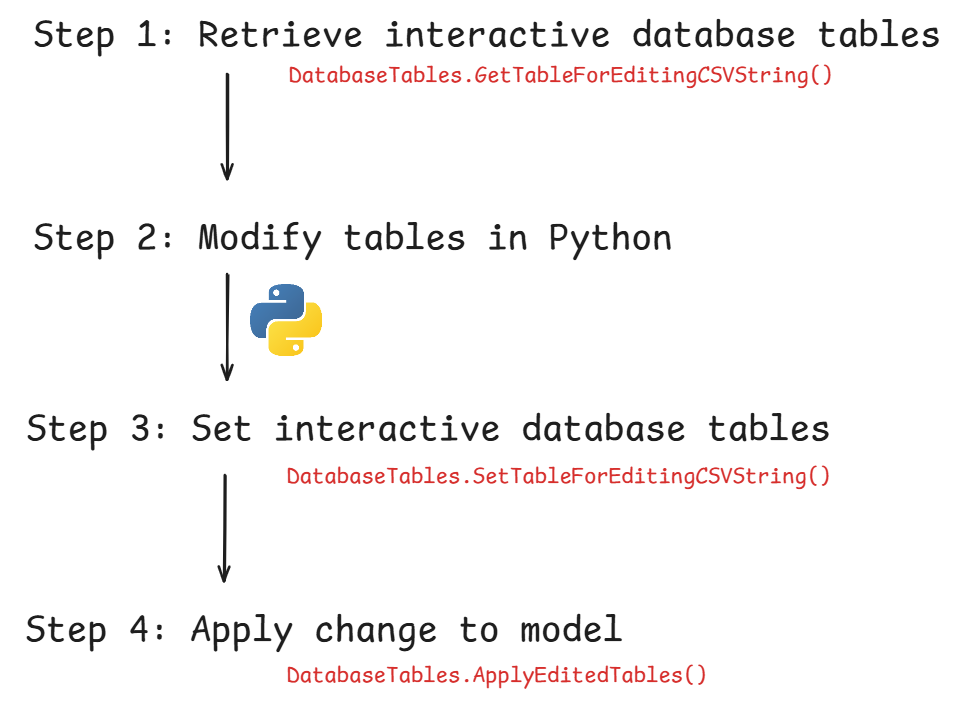
My typical workflow is to convert to csv to dataframe first, modify it, then convert the dataframe back to CSV string. For example:
import pandas as pd
import io

# Connect to ETABS (we defined this function in Section 1.0)
SapModel = connect_to_ETABS()

# Always remember to set unit. Let's use kip inches
SapModel.SetPresentUnits(3)

# Step 1: Get editing table as csv string
table_name = "Load Combination Definitions"
ret = SapModel.DatabaseTables.GetTableForEditingCSVString(TableKey = table_name,
                                                          GroupName = "All")
table_version = ret[0]
csv_string = ret[1]
int_flag = ret[2]

# Convert to Dataframe
csv_io = io.StringIO(csv_string)
df_data = pd.read_csv(csv_io, dtype=str)

# Step 2: Manipulate Dataframe. Let's add another load combo
new_row = {"Name": "1.4D",
           "Type": "Linear Add",
           "Is Auto": "No",
           "Load Name": "Dead",
           "Mode": None,
           "SF": 1.4,
           "GUID": None,
           "Notes": None
          }
df_newrow = pd.DataFrame([new_row])
df_modified_data = pd.concat([df_data, df_newrow], ignore_index=True)

# Convert back to csvString
csv_modified_data = df_modified_data.to_csv(index=False)

# Step 3: Set table
ret = SapModel.DatabaseTables.SetTableForEditingCSVString(TableKey = table_name,
                                                          TableVersion = table_version,
                                                          csvString = csv_modified_data)
# Step 4: Push change to model
SapModel.DatabaseTables.ApplyEditedTables(True)
Interactive database has a tendency of corrupting your model if you are not careful with following the table structure. Remember to save a backup!
6.0 Example - Base Reactions
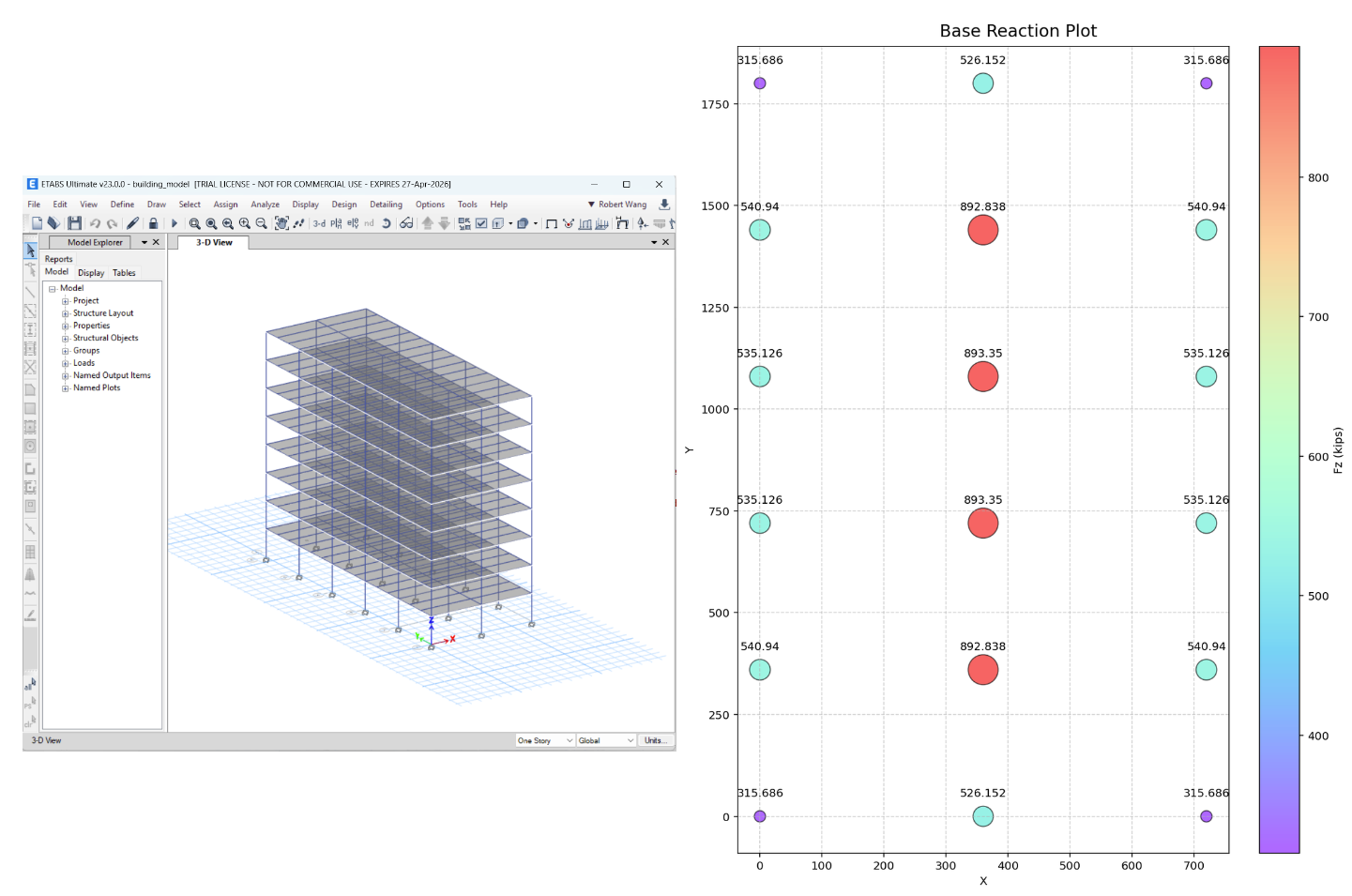
Using ETABS API, create a bubble plot of the joint base reactions (FZ) for your ETABS model.
6.1 Solution 1: Database Tables
import comtypes.client
import pandas as pd
import io
import matplotlib.pyplot as plt

#################################
# Step 1: Connect to ETABS
#################################
def connect_to_ETABS():
    helper = comtypes.client.CreateObject('ETABSv1.Helper')
    helper = helper.QueryInterface(comtypes.gen.ETABSv1.cHelper)
    try:
        myETABSObject = helper.GetObject("CSI.ETABS.API.ETABSObject")
    except (OSError, comtypes.COMError):
        print("No running instance of the program found or failed to attach.")
    SapModel = myETABSObject.SapModel
    return SapModel

# Connect to ETABS
SapModel = connect_to_ETABS()


#####################################
# Step 2: Extract reaction data
#####################################
# Set unit to kip inches
SapModel.SetPresentUnits(3)

# Set load combination and load case
selected_case = ["Dead"]
selected_combo = []
SapModel.DatabaseTables.SetLoadCasesSelectedForDisplay(selected_case)
SapModel.DatabaseTables.SetLoadCombinationsSelectedForDisplay(selected_combo)

# Get database table as csv string
ret = SapModel.DatabaseTables.GetTableForDisplayCSVString(TableKey = "Joint Reactions",
                                                         GroupName = "All")
# Convert csv string to Dataframe
csv_string = ret[2]
csv_io = io.StringIO(csv_string)
df_reactions = pd.read_csv(csv_io, dtype=str)

# Coerce data into numeric if possible
for column in df_reactions.columns:
    try:
        df_reactions[column] = pd.to_numeric(df_reactions[column])
    except:
        pass


#####################################
# Step 3: Extract point connectivity data
#####################################
# We will also need Point Connectivity Data for (x,y,z)
ret = SapModel.DatabaseTables.GetTableForDisplayCSVString(TableKey = "Point Object Connectivity",
                                                         GroupName = "All")
csv_string = ret[2]
csv_io = io.StringIO(csv_string)
df_coord = pd.read_csv(csv_io, dtype=str)

# Coerce data into numeric if possible
for column in df_coord.columns:
    try:
        df_coord[column] = pd.to_numeric(df_coord[column])
    except:
        pass


#####################################
# Step 4: Gather relevant reaction data and prep for plot
#####################################
# get all unique base joints
base_joints = df_reactions["Unique Name"].unique()

# get max and min reaction for color and bubble size scaling
df = df_reactions[df_reactions["Output Case"]=="Dead"]
reaction_min = min(df["FZ"])
reaction_max = max(df["FZ"])
size_min = 100
size_max = 2000
size_range = size_max - size_min

# loop through each joint and gather data for our plot
x = []
y = []
Fz = []
color = []
size = []
for unique_name in base_joints:
    # query table to find the correct row for joint i
    connectivity_data = df_coord[df_coord["UniqueName"] == unique_name]
    reaction_data = df_reactions[df_reactions["Unique Name"] == unique_name]

    # coordinate
    x.append(connectivity_data["X"].iat[0])
    y.append(connectivity_data["Y"].iat[0])

    # reaction
    Fz_data = reaction_data["FZ"].iat[0]
    Fz.append(Fz_data)

    # size
    size_normalized = ((Fz[-1] - reaction_min) / size_range) * size_max + size_min
    size.append(size_normalized)

    # color
    color.append(Fz_data)


#####################################
# Step 5: Create bubble chart
#####################################
# initialize plot
fig, axs = plt.subplots(figsize=(8.5, 11))

# plot bubbles
scatter = axs.scatter(x, y, s=size, c=color,
                     cmap="rainbow", alpha=0.6, edgecolors="black")

# add annotation
for i, unique_name in enumerate(base_joints):
    axs.annotate(
        Fz[i],
        (x[i], y[i]),
        fontsize=10,
        ha='center',
        va='top',
        xytext=(0, 25),
        textcoords='offset points'
    )

# some basic plot formatting
fig.suptitle("Base Reaction Plot", fontsize=15)
axs.set_xlabel("X")
axs.set_ylabel("Y")
axs.grid(True, linestyle='--', alpha=0.6)
fig.colorbar(scatter, label="Fz (kips)")
fig.tight_layout()
Here’s my joint reaction bubble chart. It makes sense that reaction is lowest at corner columns and highest at interior columns.
6.2 Solution 2: Object-Oriented
Solely relying on Database Tables is fine, but it’s not the best way to work with ETABS API. The more intuitive and scalable usage pattern is to define Object Relational Mapping. Before we proceed further, I’ll assume you have a cursory understanding of object-oriented programming (OOP). If you don’t know what that is, pause here and watch a few YouTube videos. OOP has many scary terminologies, but it’s actually quite intuitive once you grok the key concepts.
In essence, rather than having a linear workflow where we work with tabular data, it’s much better to work with objects - where attributes mirror ETABS object parameters, and methods mirror the API commands.
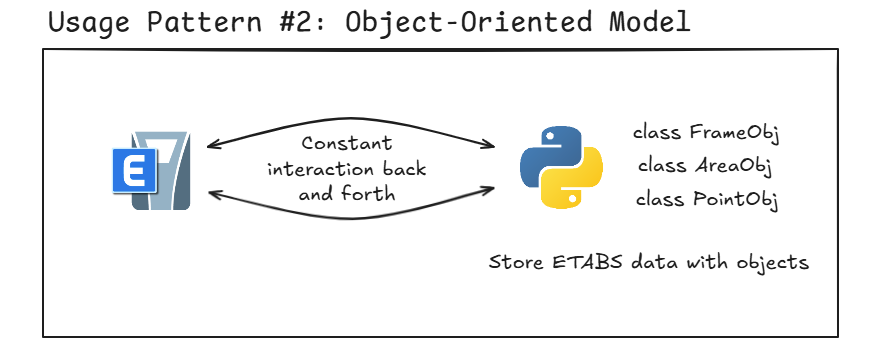
What we are creating is called a Rich Domain Model - a fancy word for how we converted ETABS data into a mirrored pythonic representation. By doing this, we can write incredibly readable code that scales well! Here’s the above example rewritten using object oriented programming concepts.
import comtypes.client
import matplotlib.pyplot as plt

#####################################
# Step 1: Define a Joint class
#####################################
class JointObject:
    """
    Object-relational mapping of Joint objects in ETABS.
    """
    def __init__(self, unique_name):
        self.unique_name = unique_name

        self.x = None
        self.y = None
        self.z = None
        self.is_restrained = None
        self.Fz = None

    def get_coords(self, SapModel):
        """get (x,y,z) coordinate of this joint"""
        ret = SapModel.PointObj.GetCoordCartesian(Name=self.unique_name)
        self.x = ret[0]
        self.y = ret[1]
        self.z = ret[2]

    def get_restraint(self, SapModel):
        """determine if this joint is restrained or not"""
        ret = SapModel.PointObj.GetRestraint(Name=self.unique_name)
        restraint_bool = ret[0]
        if True in restraint_bool:
            self.is_restrained = True
        else:
            self.is_restrained = False

    def get_reaction(self, SapModel):
        """determine dead load reaction at this joint (Fz)"""
        # make sure we know if this is a restrained node
        if self.is_restrained is None:
            self.get_restraint(SapModel)

        if self.is_restrained:
            # Deselect all cases and combos
            SapModel.Results.Setup.DeselectAllCasesAndCombosForOutput()

            # Select "Dead" load case
            SapModel.Results.Setup.SetCaseSelectedForOutput("Dead")

            # extract reaction data
            ret = SapModel.Results.JointReact(Name=self.unique_name, ItemTypeElm = 1)
            self.Fz = round(ret[8][0], 0)


#################################
# Step 2: Connect to ETABS
#################################
def connect_to_ETABS():
    helper = comtypes.client.CreateObject('ETABSv1.Helper')
    helper = helper.QueryInterface(comtypes.gen.ETABSv1.cHelper)
    try:
        myETABSObject = helper.GetObject("CSI.ETABS.API.ETABSObject")
    except (OSError, comtypes.COMError):
        print("No running instance of the program found or failed to attach.")
    SapModel = myETABSObject.SapModel
    return SapModel

# Connect to ETABS
SapModel = connect_to_ETABS()

# Set unit to kip inches
SapModel.SetPresentUnits(3)


#################################
# Step 3: Work with joint objects
#################################
# get all joints in model
ret = SapModel.PointObj.GetAllPoints()
joint_names = ret[1]

# create point objects and store it in a list
all_joints = []
for i in range(len(joint_names)):
    joint_obj = JointObject(unique_name = joint_names[i])
    all_joints.append(joint_obj)

for joint in all_joints:
    # get joint coordinate
    joint.get_coords(SapModel)

    # get joint restraint
    joint.get_restraint(SapModel)

    # get joint reactions
    joint.get_reaction(SapModel)

# get relevant base joints
relevant_joints = [joint for joint in all_joints if joint.is_restrained]


#####################################
# Step 4: prep bubble plot size and color
#####################################
# get max and min reaction for color and bubble size scaling
reaction_min = min([joint.Fz for joint in relevant_joints])
reaction_max = max([joint.Fz for joint in relevant_joints])
size_min = 100
size_max = 2000
size_range = size_max - size_min

# gather data for our plot
x = [joint.x for joint in relevant_joints]
y = [joint.y for joint in relevant_joints]
Fz = [joint.Fz for joint in relevant_joints]
color = [joint.Fz for joint in relevant_joints]
size = [((joint.Fz - reaction_min) / size_range) * size_max + size_min for joint in relevant_joints]


#####################################
# Step 5: Create matplotlib bubble chart
#####################################
# initialize plot
fig, axs = plt.subplots(figsize=(8.5, 11))

# plot bubbles
scatter = axs.scatter(x, y, s=size, c=color,
                     cmap="rainbow", alpha=0.6, edgecolors="black")

# add annotation
for i, unique_name in enumerate(relevant_joints):
    axs.annotate(
        Fz[i],
        (x[i], y[i]),
        fontsize=10,
        ha='center',
        va='top',
        xytext=(0, 25),
        textcoords='offset points'
    )

# some basic plot formatting
fig.suptitle("Base Reaction Plot", fontsize=15)
axs.set_xlabel("X")
axs.set_ylabel("Y")
#axs.set_aspect('equal', adjustable='box')
axs.grid(True, linestyle='--', alpha=0.6)
fig.colorbar(scatter, label="Fz (kips)")
fig.tight_layout()
7.0 ETABS API Cheat Sheet
Here is a curated list of popular API commands. I hope you’ll find this useful. Please note this list is by no means exhaustive. I had to leave out important details for the sake of brevity. Please refer to the complete CSI API documentation for more information. Treat this sheet more like a table of content, or a non-exhaustive highlight of things that’s possible with the API.
7.1 Connecting to ETABS
# Import comtypes
import comtypes.client

# Connecting to ETABS
helper = comtypes.client.CreateObject('ETABSv1.Helper')
helper = helper.QueryInterface(comtypes.gen.ETABSv1.cHelper)
myETABSObject = helper.GetObject("CSI.ETABS.API.ETABSObject")
SapModel = myETABSObject.SapModel
7.2 General
# Set API unit (this does not affect model unit, only API data extraction)
# 1 = LBS IN,  3 = KIP IN,  4 = KIP FT,  6 = kN m,  9 = N mm
ret = SapModel.SetPresentUnits(3)

# Get ETABS version
# ret = [ProgramName, ProgramVersion, ProgramLevel, ret_flag]
ret = SapModel.GetprogramInfo()

# Get file path
ret = SapModel.GetModelFilepath()

# Lock or unlock model
ret = SapModel.SetModelIsLocked(True)

# Refresh view after API geometry modifications
ret = SapModel.View.RefreshView()
7.3 Story Definition
# Get height of story
ret = SapModel.Story.GetHeight("Story1")

# Get elevation of story
ret = SapModel.Story.GetElevation("Story1")

# Get data for all stories (data dump)
# ret = [BaseElevation[], NumberStories, StoryNames[], StoryElevations[],
#   	 StoryHeights[], IsMasterStory[], SimilarToStory[], SpliceAbove[],
#   	 SpliceHeight[], color[], ret_flag ]
ret = SapModel.Story.GetStories_2()

# Set stories and elevation (MODEL MUST BE FULLY EMPTY)
ret = SapModel.Story.SetStories_2(BaseElevation=0,
                                  NumberStories=2,
                                  StoryNames = ["Story1", "Story2"],
                                  StoryHeights = [15, 15],
                                  IsMasterStory = [True, True],
                                  SimilarToStory = ["", ""],
                                  SpliceAbove = [False, False],
                                  SpliceHeight = [0, 0],
                                  color = [0, 0])
7.4 Load Definition
Load Patterns:
# Get all load patterns
# ret = [NumberNames, MyName[], ret_flag]
ret = SapModel.LoadPatterns.GetNameList()

# Add load pattern
# eLoadPatternType: 1 = Dead, 2 = SuperDead, 3 = Live, 4 = ReduceLive,
# 5 = Earthquake, 6 = Wind, 7 = Snow, 8 = Other
ret = SapModel.LoadPatterns.Add(Name="Superimposed Dead",
                                eLoadPatternType = 1,
                                SelfWTMultiplier = 0,
                                AddAnalysisCase = True)

# Delete load pattern
ret = SapModel.LoadPatterns.Delete(Name="Dead")
Load Cases:
# Get all load cases
# ret = [NumberNames, MyName[], ret_flag]
ret = SapModel.LoadCases.GetNameList()

# Delete load case
ret = SapModel.LoadCases.Delete(Name="Dead")
Load Combinations:
# Add new load combo
# ComboType: 0 = Linear add, 1 = envelope, 2 = absolute add, 3 = SRSS
ret = SapModel.RespCombo.Add(Name = "COMB1", ComboType = 1)

# Add to a load combo
# eCNameType: 0 = case, 1 = combo.
# ModeNumber: 0 unless modal or buckling case.
ret = SapModel.RespCombo.SetCaseList_1(Name = "COMB1",
                                       eCNameType = 0,
                                       CName = "Dead",
                                       ModeNumber = 0,
                                       SF = 1.4)

# Delete load combo. See eCNameType above.
ret = SapModel.RespCombo.Delete(Name="COMB1")

# Delete item from a load combo
# eCNameType: 0 = case, 1 = combo.
ret = SapModel.RespCombo.DeleteCase(Name = "COMB1",
                                    eCNameType = "0",
                                    CName = "Dead")

# Get all load combinations
# ret = [NumberNames, MyName[], ret_flag]
ret = SapModel.Combo.GetNameList()

# Get all load cases that belongs to a combo
# ret = (NumberItems, CNameType[], CName[], ModeNumber[], SF[], ret_flag)
ret = SapModel.RespCombo.GetCaseList_1(Name = "COMB1")
7.5 Point Object
Add:
# Add new node
# ret = [Auto_Assigned_UniqueName, ret_flag]
ret = SapModel.PointObj.AddCartesian(x = 0, y = 0, z = 0)
Get attributes:
# Get node coordinate
# ret = [X, Y, Z, ret_flag]
ret = SapModel.PointObj.GetCoordCartesian(Name = "23")

# Get (UniqueName) of all nodes in the model
# ret = [NumberNames, MyName[], ret_flag]
ret = SapModel.PointObj.GetNameList()

# Get (Label/Story) of all nodes in the model
# ret = [NumberNames, MyName[], MyLabel[], MyStory[], ret_flag]
ret = SapModel.PointObj.GetLabelNameList()

# Get (UniqueName) of all nodes on a specific level
# ret = [NumberNames, MyName[], ret_flag]
ret = SapModel.PointObj.GetNameListOnStory(StoryName="LEVEL4")

# Convert between node UniqueName and Label/Story
ret = SapModel.PointObj.GetNameFromLabel(Label = "B11", Story = "LEVEL4")
ret = SapModel.PointObj.GetLabelFromName(Name = "23")

# Get list of objects connected to a node
# ret = [NumberItems, ObjectType[], ObjectName[], PointNumber[], ret_flag]
ret = SapModel.PointObj.GetConnectivity(Name = "23")
Set attributes:
# Set nodal load
# Value = [FX, FY, FZ, MX, MY, MZ]
ret = SapModel.PointObj.SetLoadForce(Name = "32",
                                     LoadPat = "Dead",
                                     Value = [0, 0, -23, 0, 0, 0],
                                     Replace = False)

# Set nodal restraint
# Value = [UX, UY, UZ, RX, RY, RZ]. True = Fixed.
ret = SapModel.PointObj.SetRestraint(Name = "32",
                                     Value = [True, True, True, False, False, False])
7.6 Frame Object
Add:
# Add frame by XYZ coordinate
# ret = [Auto_Assigned_UniqueName, ret_flag]
ret = SapModel.FrameObj.AddByCoord(XI = 0, YI = 0,ZI = 0,
                                   XJ = 0, YJ = 180, ZJ = 0,
                                   PropName = "W14X120")

# Add frame by specifying end nodes
# ret = [Auto_Assigned_UniqueName, ret_flag]
ret = SapModel.FrameObj.AddByPoint(Point1 = "12",
                                   Point2 = "322",
                                   PropName = "W14X120")
Get Attributes:
# Data dump of all frames
# ret = [NumberNames, MyName[], PropName[], StoryName[], PointName1[], PointName2[],
# Point1X[], Point1Y[], Point1Z[], Point2X[], Point2Y[], Point2Z[], Angle[],
# Offset1X[], Offset1Y[], Offset1Z[], Offset2X[], Offset2Y[], Offset2Z[],
# CardinalPoint[], ret_flag]
ret = SapModel.FrameObj.GetAllFrames()

# Get (UniqueName) of all frames in the model
# ret = [NumberNames, MyName[], ret_flag]
ret = SapModel.FrameObj.GetNameList()

# Get (Label/Story) of all frames in the model
# ret = [NumberNames, MyName[], MyLabel[], MyStory[], ret_flag]
ret = SapModel.FrameObj.GetLabelNameList()

# Get (UniqueName) of all frames on specific story
# ret = [NumberNames, MyName[], ret_flag]
ret = SapModel.FrameObj.GetNameListOnStory(StoryName = "Level 1")

# Get frame end nodes
# ret = [Point1, Point2, ret_flag]
ret = SapModel.FrameObj.GetPoints(Name = "123")

# Convert between node UniqueName and Label/Story
ret = SapModel.FrameObj.GetNameFromLabel(Label = "B11",Story = "LEVEL4")
ret = SapModel.FrameObj.GetLabelFromName(Name = "23")
Set Attributes:
# Set section
ret = SapModel.FrameObj.SetSection(Name = "121", PropName = "W36X652")

# Set end releases
# II, JJ = release for [UX, UY, UZ, RX, RY, RZ]. True = released.
# StartValue, EndValue is meant for partial release stiffness.
ret = SapModel.FrameObj.SetReleases(Name = "232",
                                    II = [False, False, False, True, True, True],
                                    JJ = [False, False, False, False, True, True],
                                    StartValue = [0,0,0,0,0,0],
                                    EndValue = [0,0,0,0,0,0])

# Set distributed load
# MyType: 1 = force per length, 2 = moment per length
# Dir: 4 = X, 5 = Y, 6 = Z, 10 = Gravity(-Z) (auto flips sign for gravity load)
ret = SapModel.FrameObj.SetLoadDistributed(Name = "232",
                                           LoadPat = "Live",
                                           MyType = 1,
                                           Dir = 6,
                                           Dist1 = 0,
                                           Dist2 = 1,
                                           Val1 = -0.02, #k/in
                                           Val2 = -0.02, #k/in
                                           CSys = "Global",
                                           RelDist = True,
                                           Replace = True)

# Rotate frame local axis orientation around local 1 axis
ret = SapModel.FrameObj.SetLocalAxes(Name = "232", Angle = 90)

# Set frame cardinal points
# CardinalPoint: 2 = bottom center, 5 = middle center, 8 = top center, 10 = centroid
ret = SapModel.FrameObj.SetInsertionPoint_1(Name = "123",
                                            CardinalPoint = 5,
                                            Mirror2 = False,
                                            Mirror3 = False,
                                            StiffTransform = False,
                                            Offset1 = [0,0,0],
                                            Offset2 = [0,0,0])

# Set rigid end offsets
# RZ must be 1 for rigid offset to affect analysis
ret = SapModel.FrameObj.SetEndLengthOffset(Name = "123",
                                           AutoOffset = False,
                                           Length1 = 12,
                                           Length2 = 12,
                                           RZ = 1)

# Set stiffness modifiers
# Value = modifiers for [A, V2, V3, T, I2, I3, Mass, Weight]
ret = SapModel.FrameObj.SetModifiers(Name = "232",
                                     Value = [1, 1, 1, 1, 0.35, 0.35, 1, 1])

# Delete distributed loads from frame
ret = SapModel.FrameObj.DeleteLoadDistributed(Name = "232", LoadPat = "Live")

# Delete frame
ret = SapModel.FrameObj.Delete(Name = "121")
7.7 Area Object
Add:
# Add area object (wall/floors) by XYZ coordinate
# ret = [Auto_Assigned_UniqueName, ret_flag]
ret = SapModel.AreaObj.AddByCoord(NumberPoints=6,
                                  X = [50, 100, 150, 100, 50, 0],
                                  Y = [0, 0, 40, 80, 80, 40],
                                  Z = [0, 0, 0, 0, 0, 0],
                                  PropName = "WALL18")

# Add area object by vertices
# ret = [Auto_Assigned_UniqueName, ret_flag]
ret = SapModel.AreaObj.AddByPoint(NumberPoints = 4,
                                  Point = ["12", "23", "1", "66"],
                                  PropName = "WALL18")
Get Attributes:
# Get all areas in the model (data dump)
# ret = [NumberNames, MyName, DesignOrientation, NumberBoundaryPts, PointDelimiter,
# PointNames, PointX, PointY, PointZ, ret_flag]
ret = SapModel.AreaObj.GetAllAreas()

# Get (UniqueName) of all areas in the model
# ret = [NumberNames, MyName[], ret_flag]
ret = SapModel.AreaObj.GetLabelNameList()

# Get (Label/Story) of all areas in the model
# ret = [NumberNames, MyName[], MyLabel[], MyStory[], ret_flag]
ret = SapModel.AreaObj.GetNameList()

# Get (UniqueName) of all areas on a specific story
# ret = [NumberNames, MyName[], ret_flag]
ret = SapModel.AreaObj.GetNameListOnStory(StoryName = "Level 1")

# Get area object vertices (point objects)
# ret = [NumberPoints, Point[], ret_flag]
ret = SapModel.AreaObj.GetPoints(Name = "222")

# Convert between area UniqueName and Story/Label
ret = SapModel.AreaObj.GetNameFromLabel(Label = "B11",Story = "LEVEL4")
ret = SapModel.AreaObj.GetLabelFromName(Name = "23")
Set Attributes:
# Set area sections
ret = SapModel.AreaObj.SetProperty(Name = "Group1", PropName = "WALL16")

# Set piers and spandrels
ret = SapModel.AreaObj.SetPier(Name = "111", PierName = "Pier1")
ret = SapModel.AreaObj.SetSpandrel(Name = "111", SpandrelName = "Spandrel1")

# Turn area into an opening object
ret = SapModel.AreaObj.SetOpening(Name = "111", IsOpening = True)

# Set stiffness modifiers
# Value = modifiers for [f11, f22, f12, m11, m22, m12, v13, v23, mass, weight]
# f11, f11 = membrane axial
# f12 = in-plane shear
# m11, m22 = out of plane flexure
# v13, v23 = out-of-plane shear
# m12 = torsion
ret = SapModel.AreaObj.SetModifiers(Name = "232",
                                    Value = [0.5, 0.5, 1, 0.25, 0.25, 1, 1, 1, 1, 1])
7.8 Grouping and Selection
# Define a new group
ret = SapModel.GroupDef.SetGroup_1("Group1")

# Add object to group
ret = SapModel.PointObj.SetGroupAssign(Name = "11", GroupName = "Group1")
ret = SapModel.FrameObj.SetGroupAssign(Name = "22", GroupName = "Group1")
ret = SapModel.AreaObj.SetGroupAssign(Name = "33", GroupName = "Group1")

# Set property to every object in the group (e.g. sections)
# ItemType: 0 = object(default), 1 = group, 2 = selected
ret = SapModel.FrameObj.SetSection(Name = "Group1", PropName = "W14X120", ItemType = 1)
ret = SapModel.AreaObj.SetProperty(Name = "Group1", PropName = "WALL16", ItemType = 1)

# Select all object in group
ret = SapModel.SelectObj.Group("my_group")

# Select/Deselect all object
ret = SapModel.SelectObj.All()
ret = SapModel.SelectObj.All(Deselect = True)

# Get unique name of selected objects.
# ObjectType: 1 = point, 2 = frame, 5 = area
# ret =   = [NumberItems, ObjectType[], ObjectName[]]
ret = SapModel.SelectObj.GetSelected()
7.9 Analysis Results
Result setup:
# Set API unit (3 = KIP IN)
SapModel.SetPresentUnits(3)

# deselect all cases and combos (reset)
ret = SapModel.Results.Setup.DeselectAllCasesAndCombosForOutput()

# set case selected for output
ret = SapModel.Results.Setup.SetCaseSelectedForOutput("Dead")

# set combo selected for output
ret = SapModel.Results.Setup.SetComboSelectedForOutput("1.2D + 1.6L")
After setting up targeted load case/combo:
# ItemTypeElm Numeration: 0 = Object, 1 = Element, 2 = Group, 3 = Selection

# Get frame element internal forces
# ret = [NumberResults, Obj[], ObjSta[], Elm[], ElmSta[], LoadCase[],
# StepType[], StepNum[], P[], V2[], V3[], T[], M2[], M3[], ret_flag]
ret = SapModel.Results.FrameForce(Name = "123", ItemTypeElm = 0)

# Get joint displacements
# ret = [NumberResults, Obj[], Elm[], LoadCase[], StepType[], StepNum[],
# U1[], U2[], U3[], R1[], R2[], R3[], ret_flag]
ret = SapModel.Results.JointDispl(Name = "2", ItemTypeElm = 0)

# Get joint reactions
# ret = [NumberResults, Obj[], Elm[], LoadCase[], StepType[], StepNum[],
# F1[], F2[], F3[], M1[], M2[], M3[], ret_flag]
ret = SapModel.Results.JointReact(Name = "2", ItemTypeElm = 0)

# Get ALL Wall pier forces
# ret = [NumberResults, StoryName[], PierName[], LoadCase[], Location[],
# P[], V2[], V3[], T[], M2[], M3[], ret_flag]
ret = SapModel.Results.PierForce()

# Get ALL Wall spandrel forces
# ret = [NumberResults, StoryName[], SpandrelName[], LoadCase[], Location[],
# P[], V2[], V3[], T[], M2[], M3[], ret_flag]
ret = SapModel.Results.SpandrelForce()

# Get ALL section cut forces (analysis)
# ret = [NumberResults, SCut[], LoadCase[], StepType[], StepNum[],
# F1[], F2[], F3[], M1[], M2[], M3[], ret_flag]
ret = SapModel.Results.SectionCutAnalysis()

# Get ALL Section cut forces (design)
# ret = [NumberResults, SCut[], LoadCase[], StepType[], StepNum[],
# P[], V2[], V3[], T[], M2[], M3[], ret_flag]
ret = SapModel.Results.SectionCutDesign()

# Get ALL story drift
# ret = [NumberResults, Story[], LoadCase[], StepType[], StepNum[],
# Direction[], Drift[], Label[], X[], Y[], Z[], ret_flag]
ret = SapModel.Results.StoryDrifts()

# Get total base reaction of structure
# ret = [NumberResults, LoadCase[], StepType[], StepNum[],
# FX[], FY[], FZ[], MX[], ParamMy[], MZ[], GX, GY, GZ, ret_flag]
ret = SapModel.Results.BaseReact()
7.10 Database Tables
Show all available tables (e.g. “Joint Reactions”):
ret = SapModel.DatabaseTables.GetAvailableTables()
Extract database table and convert to pandas dataframe:
import pandas as pd
import io

# Set API unit (3 = KIP IN)
SapModel.SetPresentUnits(3)

# Settings
table_name = "Joint Reactions"
group_name = "All"
selected_case = ["Dead", "Live"]
selected_combo = ["1.2D + 1.6L"]

# Set export load combination and load case
SapModel.DatabaseTables.SetLoadCasesSelectedForDisplay(selected_case)
SapModel.DatabaseTables.SetLoadCombinationsSelectedForDisplay(selected_combo)

# Get database table as csv string
ret = SapModel.DatabaseTables.GetTableForDisplayCSVString(TableKey = table_name,
                                                         GroupName = group_name)
# Convert csv string to Dataframe
csv_string = ret[2]
csv_io = io.StringIO(csv_string)
df_data = pd.read_csv(csv_io, dtype=str)

# Coerce data into numeric if possible
for column in df_data.columns:
    try:
        df_data[column] = pd.to_numeric(df_data[column])
    except:
        pass

# final data stored in df_data
df_data.head()
Modifying model with interactive database:
import pandas as pd
import io

# Set API unit (3 = KIP IN)
SapModel.SetPresentUnits(3)

# Step 1: Get editing table as csv string
table_name = "Load Combination Definitions"
ret = SapModel.DatabaseTables.GetTableForEditingCSVString(TableKey = table_name,
                                                          GroupName = "All")
table_version = ret[0]
csv_string = ret[1]
int_flag = ret[2]

# Convert to Dataframe
csv_io = io.StringIO(csv_string)
df_data = pd.read_csv(csv_io, dtype=str)

# Step 2: Manipulate Dataframe. Let's add another load combo
new_row = {"Name": "1.4D",
           "Type": "Linear Add",
           "Is Auto": "No",
           "Load Name": "Dead",
           "Mode": None,
           "SF": 1.4,
           "GUID": None,
           "Notes": None
          }
df_newrow = pd.DataFrame([new_row])
df_modified_data = pd.concat([df_data, df_newrow], ignore_index=True)

# Convert back to csvString
csv_modified_data = df_modified_data.to_csv(index=False)

# Step 3: Set table
ret = SapModel.DatabaseTables.SetTableForEditingCSVString(TableKey = table_name,
                                                          TableVersion = table_version,
                                                          csvString = csv_modified_data)
# Step 4: Push change to model
SapModel.DatabaseTables.ApplyEditedTables(True)
Footnotes:
-
API allows engineers (and AI agents) to interact with the FEM model directly with programming rather than with a graphical user interface. This unlocks a world of possibilities for automation and customization. CSI had the foresight to invest and develop an incredible interface. Kudos to whoever pushed the API forward. I know startups that picked CSI products - despite the hefty price - over cheaper alternatives because of the API. All of that is to say: looking forward to Ashraf’s next $4 million party. If perchance you work at a competing software vendor, I invoke that famous Jeff Bezos quote: “your margin is my opportunity”. I would love to see more APIs made available to engineers. ↩